Register Database
<< Database Registration Info | IBExpert | Unregister Database >>

Tutorial
Database registration is necessary, in order for IBExpert to recognize the presence of a database. It is possible to specify certain options, settings and defaults here. The Database Registration Editor can be opened using the IBExpert menu item Database / Register Database, or key combination [Shift + Alt + R]. It is automatically generated when the Register Database After Creating checkbox is flagged in the Create Database dialog.
The Database Registration Editor is split into two sections: on the left-hand side a tree overview of the various registration options is displayed; the right input panel shows the information and setting options available for each tree subject.
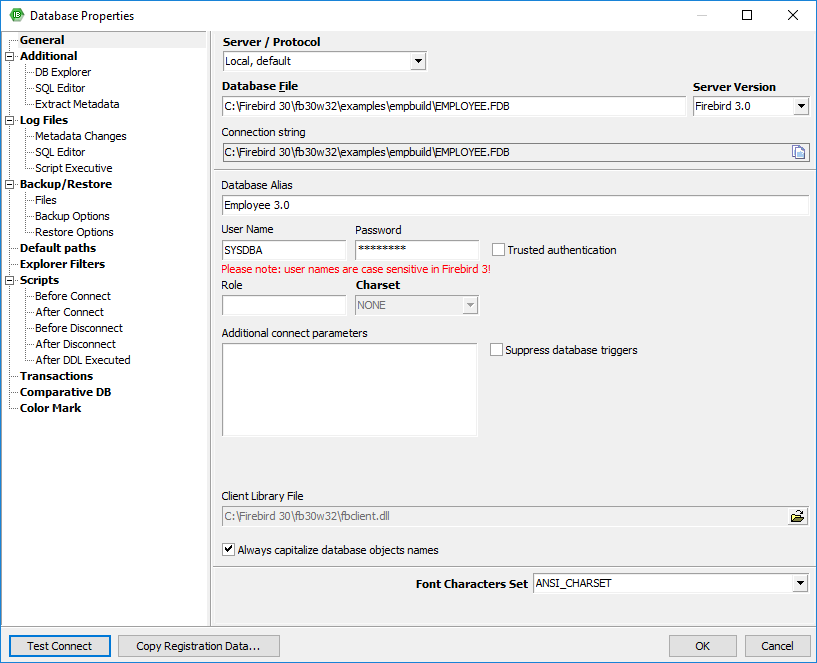
Since version 2011.12.01 IBExpert uses the IBExpert User database with Firebird Embedded 2.5 to store IBExpert data (registered databases, query histories etc.) by default. In previous versions by default IBExpert stored this data in the IBExpert.stg file and the user was able to change this manually in Options / Environment Options / User Database. Working with IBExpert.stg is still possible (for example, if you disable the User Database manually) but you will get a warning every time you start IBExpert, and we will not support this method in the future.
General
The following entry fields allow the user to specify certain general properties and defaults for the database to be registered.
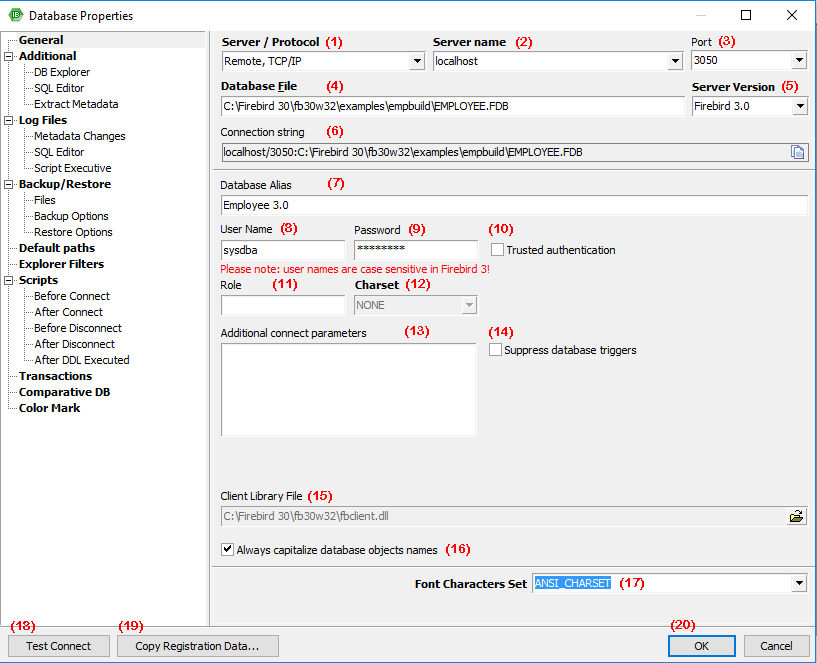
(1) Server / Protocol: first the server storing the database needs to be specified. This can be local (localhost) or remote (see Create Database). By specifying a local server, the second field is automatically blended out, as in this case it is irrelevant. By specifying Remote and localhost a protocol can be specified and used even when working locally. The protocol offers a pull-down list of three options: TCP/IP, NetBEUI or SPX. TCP/IP is the worldwide standard (please refer to Register Database for more information).
(2) Server name and (3) Port: must be known when accessing remotely. The standard port for Firebird and InterBase® is 3050. However this is sometimes altered for obvious reasons of security, or when other databases are already using this port. If a different port is to be used for the Firebird/InterBase® connection, the port number needs to be included as part of the server name (parameter is server/port). For example, if port number 3055 is to be used, the server name is SERVER/3055. This is sometimes the case when a Firewall or a proxy server is used, or when another program uses the standard port. For using an alias path for a remote connection, please refer to the article Remote database connect using an alias.
(4) Database File: by clicking on the folder icon to the right of this field, the path can easily be found and the database name and physical path entered. For example for Firebird:
- C:Programs\Firebird\Firebird_1_5\examples\EMPLOYEE.FDB
for InterBase®:
- C:Programs\Interbase\examples\EMPLOYEE.GDB
If no database alias has been specified, the database name must always be specified with the drive and path. Please note that the database file for a Windows server must be on a physical drive on the server, because Firebird/InterBase® does not support databases on mapped drive letters.
(5) Server versions: this enables a server version to be specified as standard/default from the pull-down list of options. This is necessary for various internal lists. For example, possible key words can be limited this way.
If you're not sure of the Firebird version of your database, register the database initially with any server version. Once registered, connect the database and, when the database name is marked in the DB Explorer, you can view the actual server version in the SQL Assistant. Your database registration can then be amended using the IBExpert Database menu item, Database Registration Info.
(6) Connection string: displays the connection string as specified under (1) to (4). Clicking the icon to the right of the string automatically copies it to the clipboard.
(7) Database Alias: descriptive name for the database (does not have to conform to any norms, but is rather a logical name). The actual database name and server path and drive information are hidden behind this simple alias name - aiding security, as users only need to be informed of the alias name and not the real location of the database. For example:
Employee
(8) User Name: the database owner (i.e. the creator of the database) or SYSDBA. Incorporates notification about the case sensitivity of user names (logins) for Firebird 3.
(9) Password: if this field is left empty, the password needs to be entered each time the database is opened. Please refer to Database Login for further information. The default password for SYSDBA is masterkey. Although this may be used to create and register a database, it is recommended - for security reasons - that this password be changed at the earliest opportunity.
(10) Trusted authentication: If Firebird version 2.1 or higher has been specified under (5) Server versions, an extra check-box option appears for the specification of Trusted authentication:

Please refer to the Firebird 2.5 Release Notes chapter, Authentication for further details regarding this feature as it appears in version 2.1 and the changes made in Firebird 2.5.
(11) Role: an alternative to (8) and (9);can initially be left empty.
(12) Charset (abbreviation for Character Set): The default character set can be altered and specified as wished. This is useful when the database is designed to be used for foreign languages, as this character set is applicable for all areas of the database unless overridden by the domain or field definition. If not specified, the parameter defaults to NONE (the default character set of EMPLOYEE.FDB), i.e. values are stored exactly as typed. For more information regarding this subject, please refer to Charset/Default Character Set. If a character set was not defined when creating the database, it should not be used here.
Do NOT perform conversion from/to UTF8: When working with a database using UTF8 character set, IBExpert performs automatical conversion from UTF8 to Windows Unicode (for example, when a stored procedure is opened for editing), and backwards (when a stored procedure is compiled). This applies to Firebird 2.1 and 2.5 databases. For other databases you need to enable this behavior manually (if you really need this!) by flagging this checkbox.
(13) Additional connect parameters: input field for additional specifications. For example, system objects such as system tables and system-generated domains and triggers can be specified here. They will then automatically be loaded into the Database Explorer when opening the database alias.
(14) Suppress database triggers:
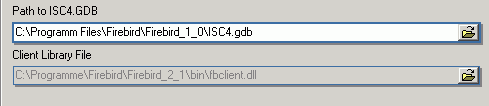
(15) Path to ISC4.GDB & Client library file: The Path to ISC4.GDB (only appears if older versions of Firebird or InterBase® have been specified under (5)) can be found in the Firebird or InterBase® main directory. This database holds a list of all registered users with their encrypted passwords, who are allowed to access this server. When creating new users in earlier InterBase® versions (<6), IBExpert needs to be told where the ISC4.GDB can be found. Since InterBase® version 6 or Firebird 1 there is a services API. So those working with newer versions may ignore this field! If Firebird 2.0 or higher has been specified under (5) the client access library, fbclient.dll location is displayed under Client library file.
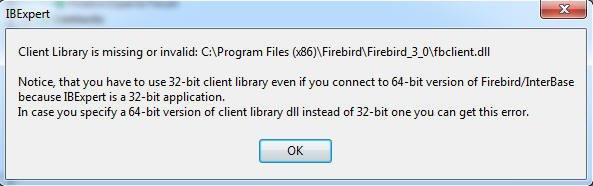
Note: Even if you are using a 64-bit version of Firebird or InterBase®, you will need to use a 32-bit client library, because IBExpert is a 32-bit application. If you accidentally specify a 64-bit client library, you will get an error message:
(16) Always capitalize database objects' names (checkbox): this is important as in SQL Dialect 3 entries can be written in upper or lower case (conforming to the SQL 92 standard). InterBase® however accepts such words as written in lower case, but does not recognize them when written in upper case. It is therefore recommended this always be activated.
(17) Font character set: this is only for the IBExpert interface display. It depends on the Windows language. If an ANSI-compatible language is being used, then the ANSI_CHARSET should be specified.
(18) Test connect: the Comdiag dialog appears with a message stating that everything works fine, or an error message - please refer to the IBExpert Services menu item, Communication Diagnostics for further information.
(19) Copy registration data...: alias information from other existing registered databases can be used here as a basis for the current database. Simply click on the button and select the registered database which is to be used as the alias.
(20) Register or Cancel: after working through these options, the database can be registered or cancelled.
Additional
The Database Registration options available on the Additional page are as follows:
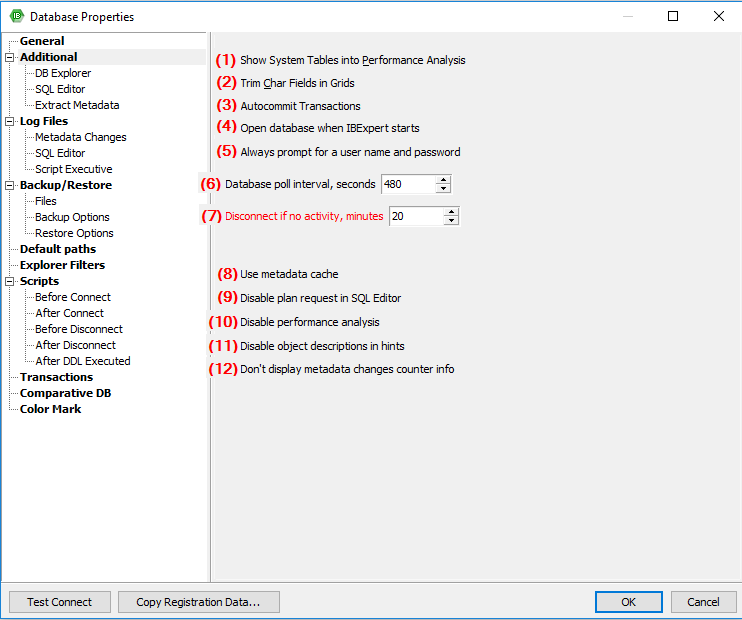
(1) Show System tables into Performance Analysis: the developer can choose whether he also wishes to have the database system tables (in addition to the user-defined objects) included in the Performance Analysis found in the SQL Editor, Stored Procedure Editor and Visual Query Builder.
(2) Trim Char Fields in Grids: adapts the field length to the ideal length in all grids (see Table Editor / Data and SQL Editor / Results as well as the IBExpert Grid menu).
(3) Autocommit Transactions: This allows all transactions to be committed immediately (i.e. IBExpert no longer asks for confirmation of a commit command and there is NO option to rollback). This is an EXTREMELY dangerous option! For example, if an irreversible DROP command has been wrongly entered (e.g. instead of typing a FIELD_NAME the DATABASE_NAME is mistakenly entered), it is still automatically committed.
(4) Open database when IBExpert starts: Checking this option automatically connects this database when IBExpert is started.
(5) Always prompt for a user name and password: This option displays a login prompt dialog each time you try to connect to the database.
(6) Database poll interval, seconds: This option allows you to poll a database with a simple query to keep the connection alive. Set the poll interval to 0 (default) to disable polling.
(7) Disconnect if no activity: Set it to a non-zero value to close the connection after a specified number of minutes if no activity against the connected database is detected.
(8) Use Metadata cache: e.g. when accessing remotely using a modem line, the InterBase® server can only be accessed at a limited speed. IBExpert needs to know which information it needs to fetch, and this may take some time. If the metadata cache is checked, IBExpert does not download the complete database each time, only the information that it really needs.
(9) Disable plan request in SQL Editor: This options deactivates the query plan displayed in the lower panel of the Results page in the SQL Editor.
(10) Disable performance analysis: This deactivates the Performance Analysis page in the SQL Editor. This may be desirable when working remotely on a slow modem connection.
(11) Disable object description in hints: These hints appear when you move the mouse cursor over the column captions in the data grid. If descriptions in these hints are not disabled IBExpert executes some SELECTs to get them from the database. If you''re working with the database using a slow modem connection this decrease the performance dramatically.
(12) Don't display metadata changes counter info; This deactivates the message 253 changes to [TABLE] left, which is displayed in the status bar.
Additional/DB Explorer
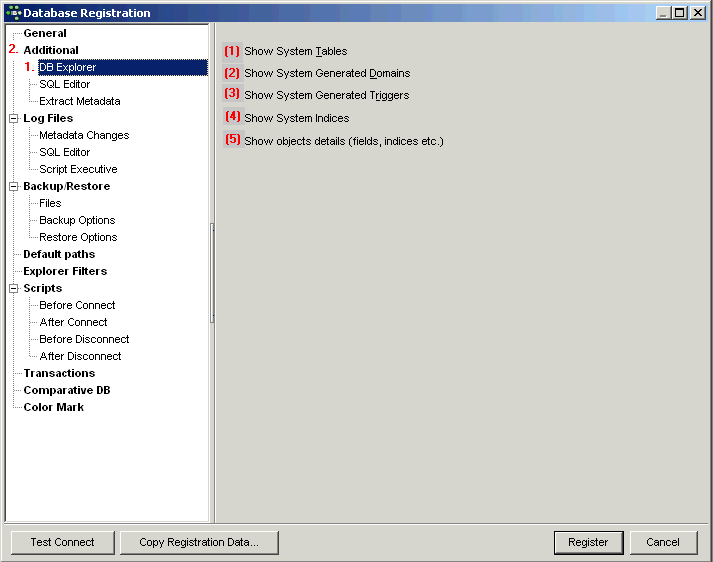
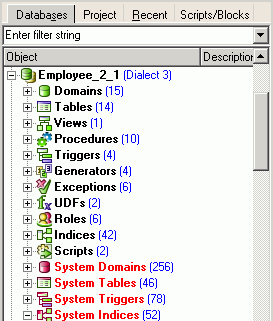
(1) Show System Tables: tables generated by Firebird/InterBase® are displayed in the IBExpert DB Explorer in red.
(2) Show System Generated Domains: domains generated by Firebird/InterBase® are displayed in the IBExpert DB Explorer in red.
(3) Show System Generated Triggers: triggers generated by Firebird/InterBase® are displayed in the IBExpert DB Explorer in red.
(4) Show System Indices: indices generated by Firebird/InterBase® are displayed in the IBExpert DB Explorer in red.
(5) Show objects details: (fields, indices etc.)
For database development it is wise to have all these items visible in the DB Explorer.
Additional/SQL Editor
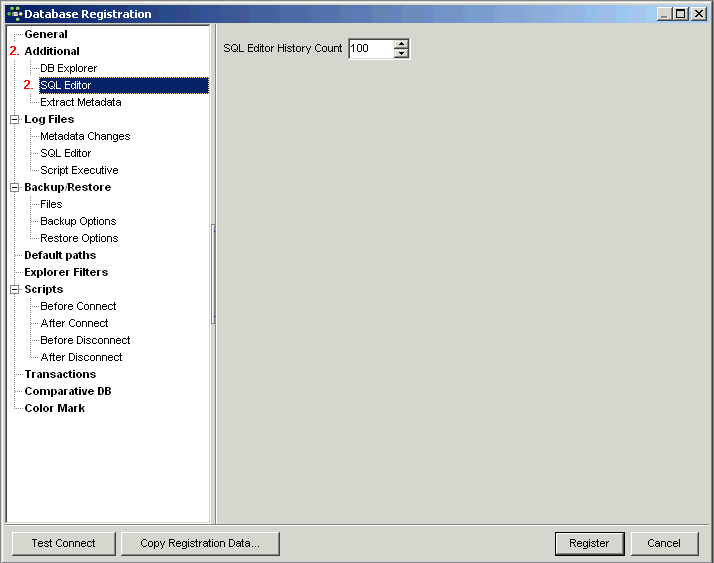
The SQL Editor History Count determines the number of SQLs that are saved and displayed in the IBExpert SQL Editor. Here the default value of 100 can be adjusted as wished.
Additional/Extract Metadata
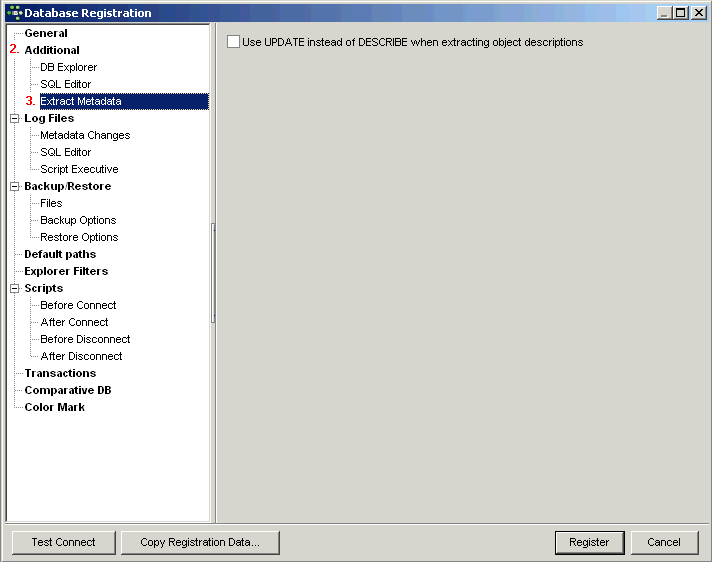
This option allows you to check the IBExpert Tools menu feature, Extract Metadata - Use UPDATE instead of DESCRIBE (Firebird 2.0 feature) on the Options page in the Extract Metadata window. If it is enabled, IBExpert will generate an UPDATE RDB$xxx SET RDB$DESCRPTION ... statement instead of DESCRIBE while extracting metadata.
Log Files
If you would like IBExpert to protocol all statements that change metadata and/or are executed from the SQL Editor, use this section to enter path and file names. This is useful for keeping a record of which changes were made to the data structure in IBExpert.
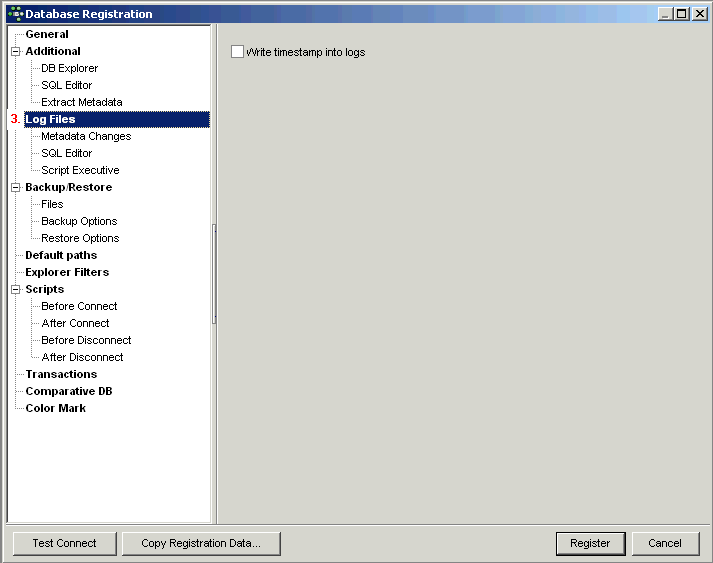
Write Timestamp into logs: the timestamp option is useful for noting date and time on logs.
It is also possible to include a date part into log file names, allowing you to create daily/monthly logs automatically. The following substrings in a log file name will be replaced with a current date:
%DATE%%DATE=<date format string>%
%DATE% is a short form of the date template and is equal to %DATE=yyyy-mm-dd%.
Examples:
File name for simple daily logs:
D:\MyLogs\TestDB\%DATE%.sql
To create a separate directory (e.g. 'January 2009' etc.) for each month:
D:\MyLogs\Test Unicode\%DATE=mmmm of yyyy%\%DATE=yyyy.mm.dd%.sql
Log Files - Metadata changes
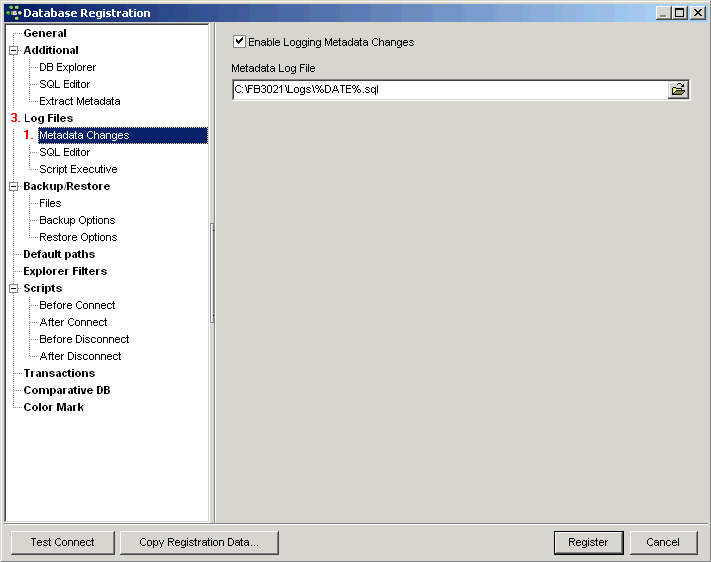
Enable Logging Metadata Changes: allows all changes to metadata to be logged, in order to follow all alterations to the data structure.
Log Files - SQL Editor
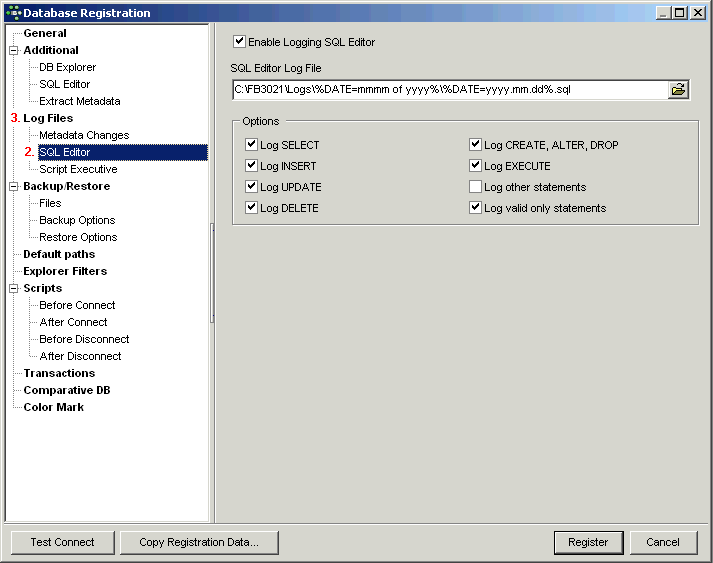
Enable Logging SQL Editor: Allows all SQL Editor work to be logged - a useful option, which should be checked. Should the log files become too large, older logs can always be deleted at regular intervals.
Log Files - Script Executive
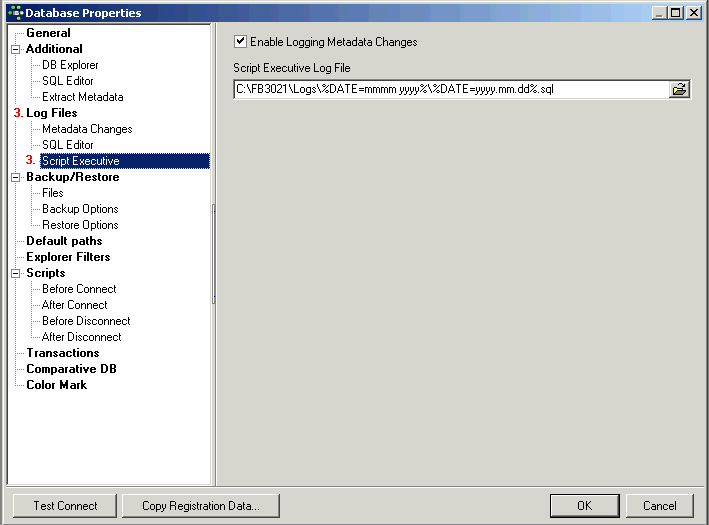
Enable Logging Metadata Changes: checkbox to specify whether all alterations to metadata should be logged or not.
Backup/Restore
Files
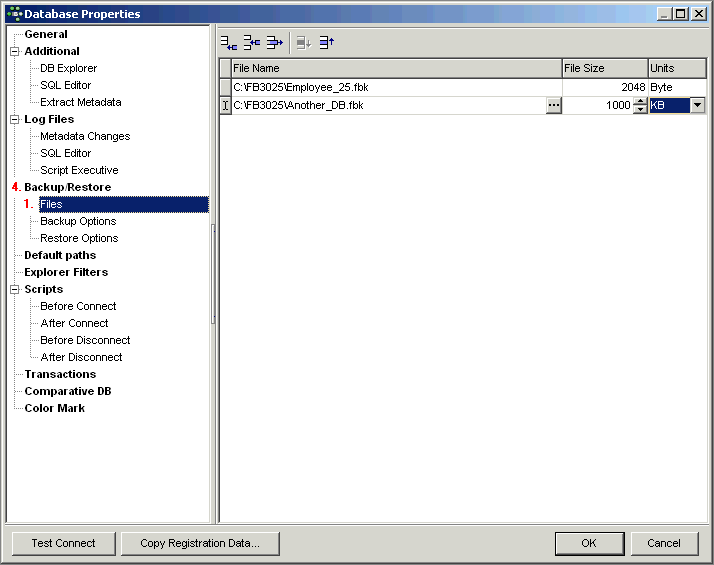
Backup and restore file names and options can be specified for each database alias. This makes it easier to backup a database with a single mouse click from the IBExpert Services menu.
Using the first icon on the left a file name can be specified as the default file for backups. When left empty, the backup file name must be specified for each backup. For versions since Firebird 1.0 or InterBase® 6.5 the file size is irrelevant (64B file system). Secondary backup files can also be specified here.
Backup Options
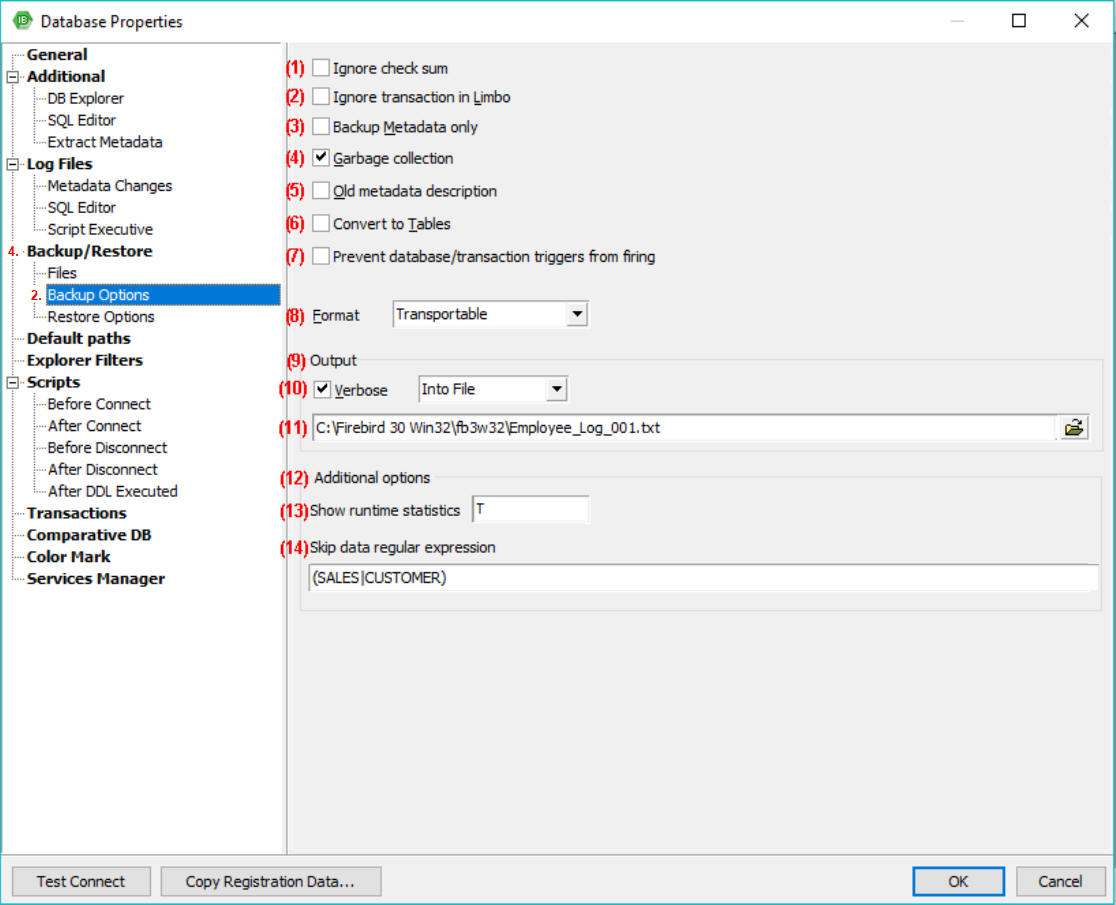
(1) Ignore check sums: ignores any check sum errors and continues to backup the database. This option should be selected if a backup is being performed because database errors are suspected. If this option is not checked, the backup is aborted if a check sum error is found. This is one possibility to force a backup for a corrupt database. Please note that checksums are not maintained in UNIX versions.
(2) Ignore transactions in Limbo: in limbo transactions are those which are supposed to run across two or more databases and have been started, but neither finally committed nor rolled back at the time of the database backup. This option backs up only the most recent, committed transactions. It allows you to back up a database before recovering corrupted transactions. Generally, you should recover in limbo transactions before performing a backup.
(3) Backup metadata only: results in an empty copy of the database, as only the database definition (metadata) is saved, not the data itself. This option is similar to using Windows ISQL to extract a database to a file.
(4) Garbage collection: checks every row, removing outdated versions, empty pages and parts of them.
Because each page is carefully examined, the backup takes longer. Should a backup need to be executed rapidly, the garbage collection can be switched off here. Only the deleted and NOT the older versions of updated data sets are dumped. The distribution of page occupation can be viewed in the database statistics. The garbage collection in Firebird/InterBase® can also be started using the SELECT command.
(5) Old metadata description: this enables a backup and restore to older InterBase® versions.
(6) Convert to tables: this concerns so-called external files. Following a backup the external files are also incorporated, and then restored as tables.
(7) Prevent database/transaction triggers from firing: This is equal to the isc_dpb_no_db_triggers option in additional connection parameters.
(8) Format: the options transportable or non-transportable are offered here. As a rule always choose "transportable", so that the database can be easily transported to other platforms such as Linux.
(9) Verbose output: Writes step-by-step status information to the output log. This option is useful if the backup is failing, and the reasons need to be tracked down.
(10): If the Verbose option is activated, the output log options: on-screen or into file are offered for selection.
(11) File name, path and drive; can be specified here, if the into file output option has been chosen.
(12) Additional options: for Firebird 3 and 4:
(13) Show runtime statistics: is equal to -STATISTICS gbak switch and should contain any combination of T, D, R, W chars as described in the Firebird documentation (https://firebirdsql.org/file/documentation/release_notes/html/en/3_0/bk02ch11s03.html). Arguments for gbak STATISTICS output:
| Item | Argument | Data Reported |
| Total time | T | Time elapsed since the gbak process started, in seconds and milliseconds. |
| Time delta | D | Time elapsed since the previous line of output, in seconds and milliseconds. |
| Page reads | R | Number of page reads since the previous line of output, integer. |
| Page writes | W | Number of page writes since the previous line of output, integer. |
(14) Skip data regular expression: is equal to -skip_d(ata) gbak switch and may contain any regular expression as described in https://firebirdsql.org/file/documentation/release_notes/html/en/3_0/bk02ch11s03.html. For example: (sales|customer)
Restore Options
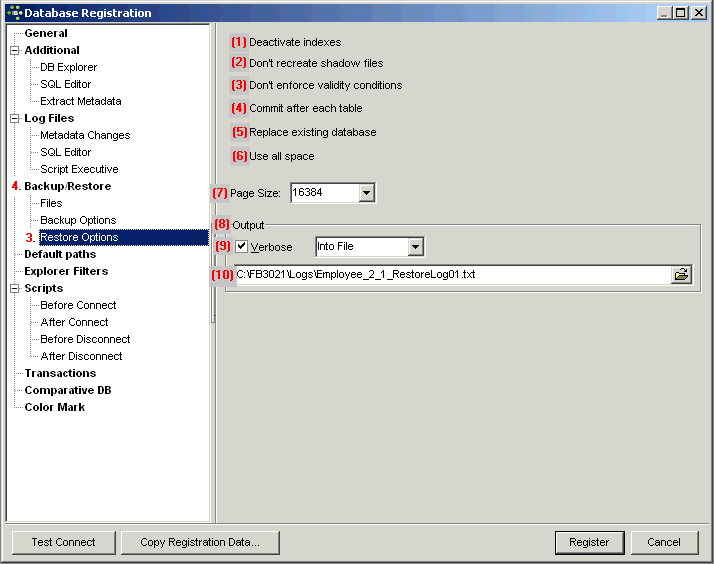
(1) Deactivate indexes: This option does not restore indices as part of the restore process. It is used to improve restore performance. If this option is not checked, Firebird/InterBase® updates indices after all tables have been filled with the restored rows. This option can also be used if duplicate values are suspected in indices that are flagged as unique. After the duplicate values have been found and corrected, the indices can be reactivated.
(2) Don't recreate shadow files: this option deletes the database shadow definition. This option is required if the destination database does not support shadows, if you are migrating from an earlier version of InterBase® where shadows were not supported, or if the machine where the shadow resides is not available.
(3) Don't enforce validity conditions: this option does not restore constraints, i.e. it deletes the validity constraints from the database's metadata definition. It is important to save a copy before a restore is performed with this option checked.
This option is necessary if the validity constraints were changed after data had already been entered into the database. When a database is restored, Firebird/InterBase® compares each row with the metadata; an error message is received if incompatible data is found. Once the offending data has been corrected, the constraints can be added back.
(4) Commit after each table: this option restores metadata and data for each table in turn as a single transaction, and then commits the transaction. This option is recommended, so that should a problem occur during the restore, at least all correct tables are restored. It is particularly useful, if corrupt data is suspected in the backup, or if the backup is not running to completion. Normally, Firebird/InterBase® first restores all metadata and then the data.
(5) Replace existing database: this should as a rule be toggled, as it makes no difference if there is no database present as yet. Although leaving this option unchecked provides a measure of protection from accidentally overwriting an existing database file that may still be needed.
(6) Use all space: only relevant if restoring the database to a CD. In this case 100% space of each page is used, and not, as is usual, 80%.
(7) Page size: Changes the default size of each page. There are numerous reasons for wanting to change the database page size (please refer to page size).
(8) Verbose output: Writes step-by-step status information to the output log. This option is useful if the backup is failing, and you need to track down the reason.
(9) The output log options: on-screen or into file are offered here.
(10) File name, path and drive: can be specified here, if the into file output option has been chosen.
See also:
IBExpertBackupRestore
Backup database
Restore database
Default paths
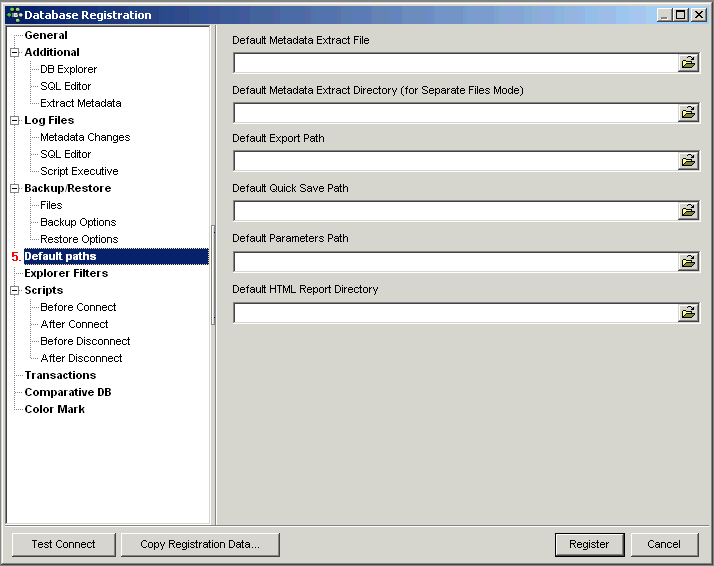
Here standard default drives, paths and files may be specified, if wished, for the following:
- Metadata extract file
- Metadata extract directory (for Separate files Mode)
- Export path
- Quick save path
- Parameters path
- HTML report directory
Explorer filters
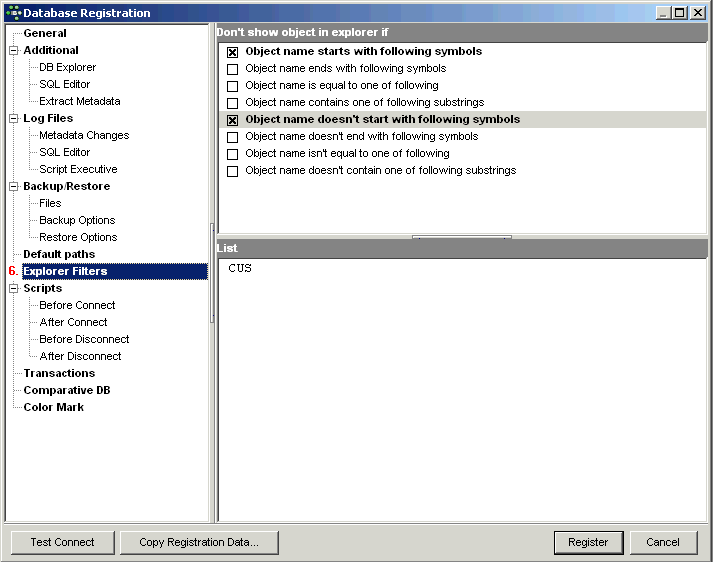
This is only of interest for extremely large and complex databases with multiple registrations. It refines the selection of database objects displayed in the IBExpert DB Explorer. The database object names displayed can be filtered according to one or more of the conditions listed.
Scripts
It is possible to execute SQL scripts before and after connecting to the database and before and after disconnecting from the database as well as after executing DDL script:
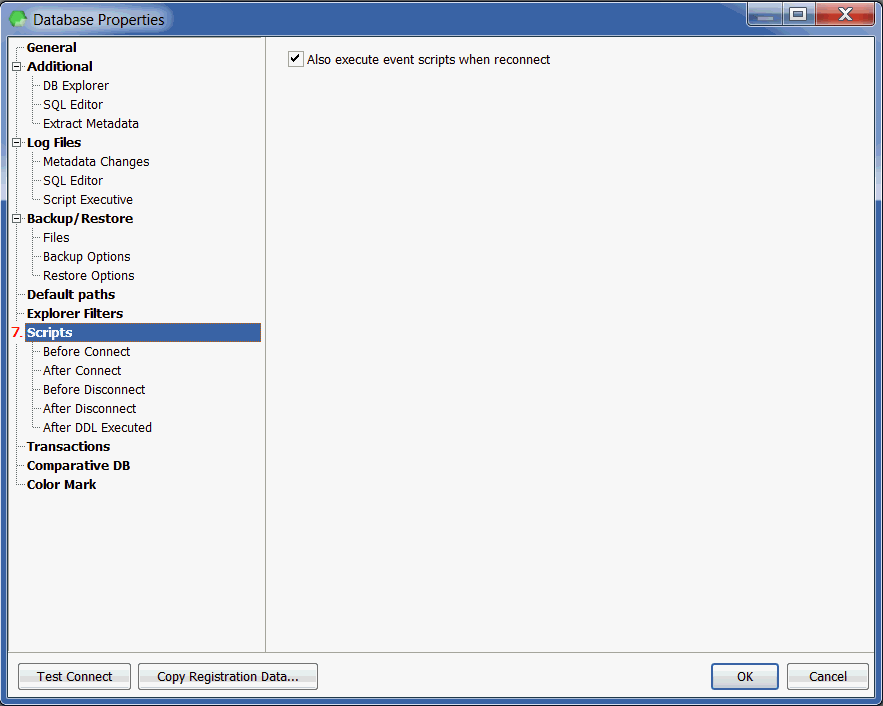
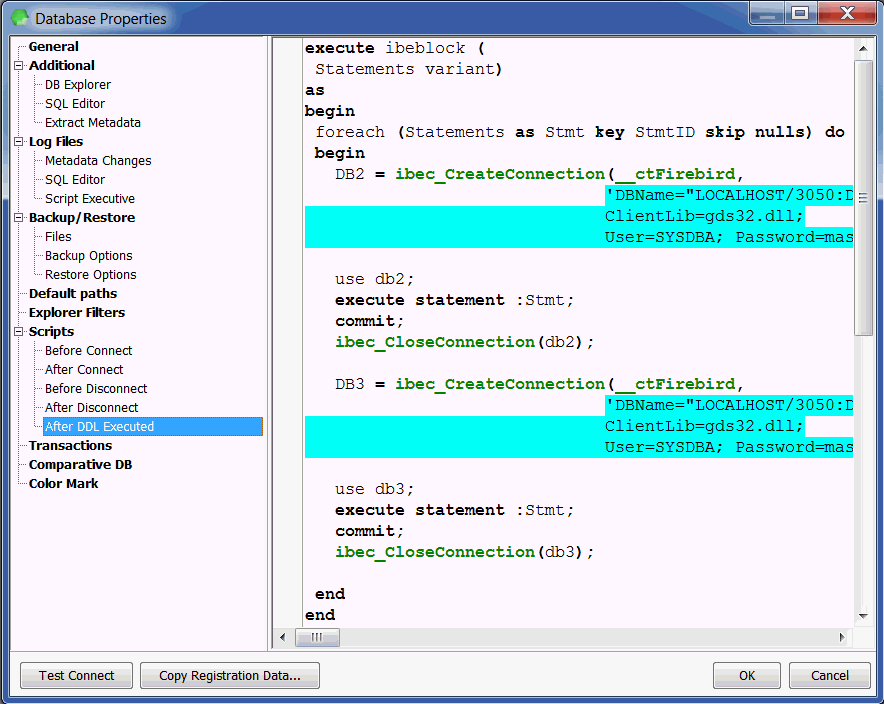
Example After DDL executed script: automatically update metadata in another database(s)
We would like to illustrate the Scripts feature with a particularly useful example: automatically updating all metadata changes made in this database (usually your test or development database) in one or more other databases (for example your production database).
Simply click on Scripts / After DDL executed, insert the following script template and adapt to suit your requirements:
 execute ibeblock (
  Statements variant)
 as
 begin
  foreach (Statements as Stmt key StmtID skip nulls) do
  begin
    DB2 = ibec_CreateConnection(__ctFirebird,
                               'DBName="LOCALHOST/3050:D:\db\r2.fdb";
                               ClientLib=gds32.dll;
                               User=SYSDBA; Password=masterke; Names=UTF8; SqlDialect=3;');

    use db2;
    execute statement :Stmt;
    commit;
    ibec_CloseConnection(db2);

    DB3 = ibec_CreateConnection(__ctFirebird,
                               'DBName="LOCALHOST/3050:D:\db\r3.fdb";
                               ClientLib=gds32.dll;
                               User=SYSDBA; Password=masterke; Names=UTF8; SqlDialect=3;');

    use db3;
    execute statement :Stmt;
    commit;
    ibec_CloseConnection(db3);

  end
 end
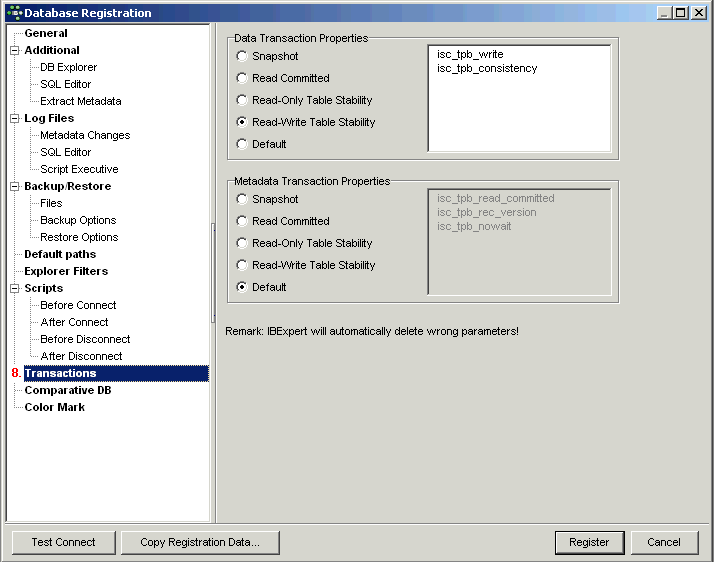
Transactions
This page allows you to specify different transaction isolation levels for registered databases.
Comparative Database
This option allows you to compare a selected database object in one database with an object in another (comparative) database. In order to use this feature, the comparative database must first be defined here:
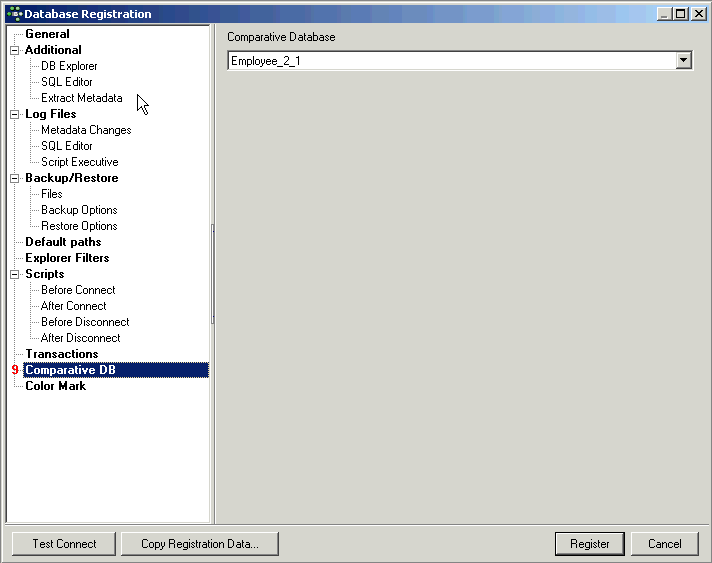
The Comparison page can be found in all IBExpert object editors. IBExpert generates scripts of the changes necessary to update the object either in the main or the comparative database. Please refer to the Table Editor chapter, Comparison for further information.
Color Mark
This feature allows you to select an individual color frame for all editor windows in your database registration. It is possible, for example, to set a green frame on your developer database and a red one on your production database. This can help to avoid executing operations on the wrong database.
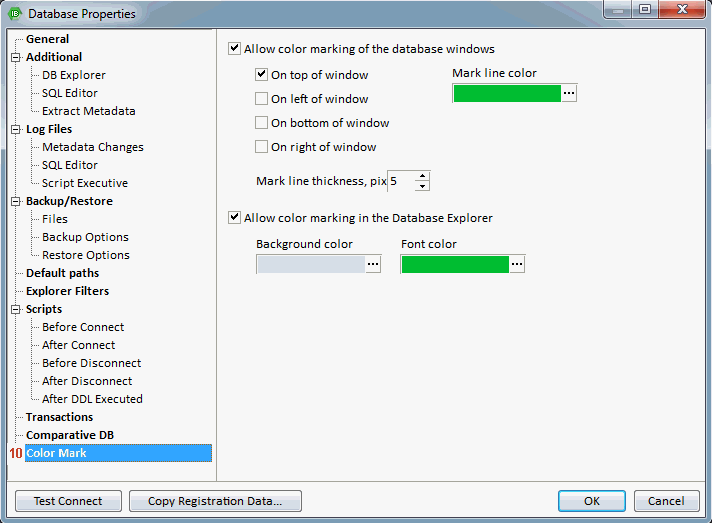
Flag the checkboxes to specify whether you wish the editors to be framed on all four sides or only on certain sides. Then select the desired line color for this particular database, and - if desired - increase the default line thickness. Apply the same color to the objects in the Database Explorer as well if wished.
Services Manager
This page supports the Firebird 3 and Firebird 4 Expected database option.
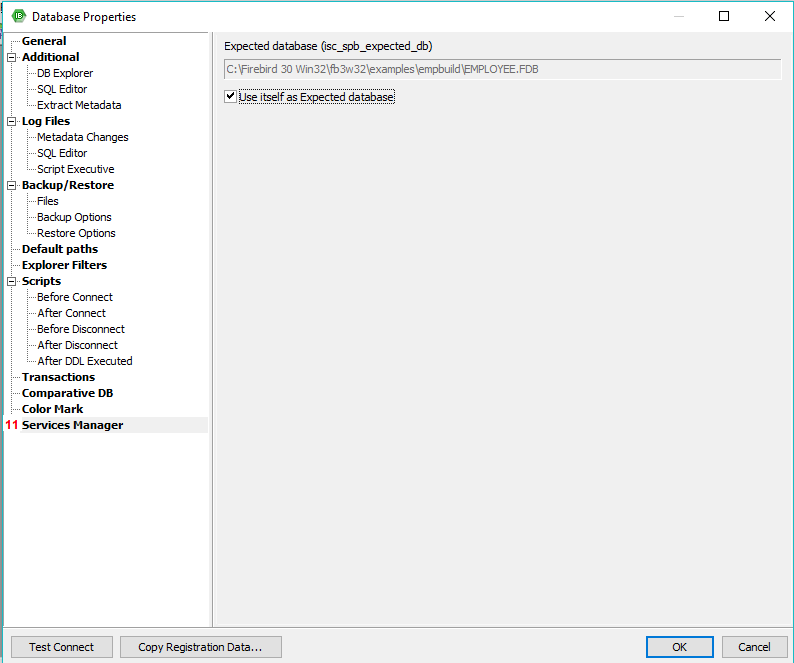
If you want to use the services API to access a database which is configured to use a non-default security database, the new SPB item isc_spb_expected_db should be used when attaching to the Services Manager. The value of this item is a database which is expected to be accessed. See the Firebird README.services_extension.txt for more details.
See also:
Database toolbar
Communication Diagnostics
Default character set
Remote database connect using an alias
Create Database
Script Executive
Secondary Files Manager
Database validation
back to top of page
<< Database Registration Info | IBExpert | Unregister Database >>